blob: 0c148d6535a96291c27d0581733d52c505b0eb07 (
plain)
1
2
3
4
5
6
7
8
9
10
11
12
13
14
15
16
17
18
19
20
21
22
23
24
25
26
27
28
29
30
31
32
33
34
35
36
37
38
39
40
41
42
43
44
45
46
47
48
49
50
51
52
53
54
55
56
57
58
59
60
61
62
63
64
65
66
67
68
69
70
71
72
73
74
75
76
77
78
79
80
81
82
83
84
85
86
87
88
89
90
91
92
93
94
95
96
97
98
99
100
101
102
103
104
105
106
107
108
109
110
111
112
113
114
|
# iTheme theme for Hugo
**如果喜欢这个主题, [请给我点赞!](https://github.com/floyd-li/hugo-theme-itheme)**


## 介绍
[English Readme](https://github.com/floyd-li/hugo-theme-itheme/blob/master/README.md)
一个苹果味十足的[Hugo](https://gohugo.io/)主题,移植自[astro-air-blog](https://github.com/austin2035/astro-air-blog)
## 预览
[测试站点](https://hugo-theme-itheme.netlify.app)
## 快速开始
在开始之前,请先安装好[Hugo](https://gohugo.io/)。
### 使用测试站点快速开始
这是[测试站点的仓库](https://github.com/floyd-li/itheme-demo-site)
```bash
git clone --recurse-submodules https://github.com/floyd-li/itheme-demo-site.git my-site
cd ./my-site && hugo server -D
```
然后,就可以访问`http://localhost:1313`查看效果啦~
### 作为一个已有项目的主题
```bash
git submodule add https://github.com/floyd-li/hugo-theme-itheme.git themes/hugo-theme-itheme
echo "theme = 'hugo-theme-itheme'" >> config.toml
```
可能需要在`config.toml`文件中添加一些配置,请参考后文的[站点配置](#site-configuration)
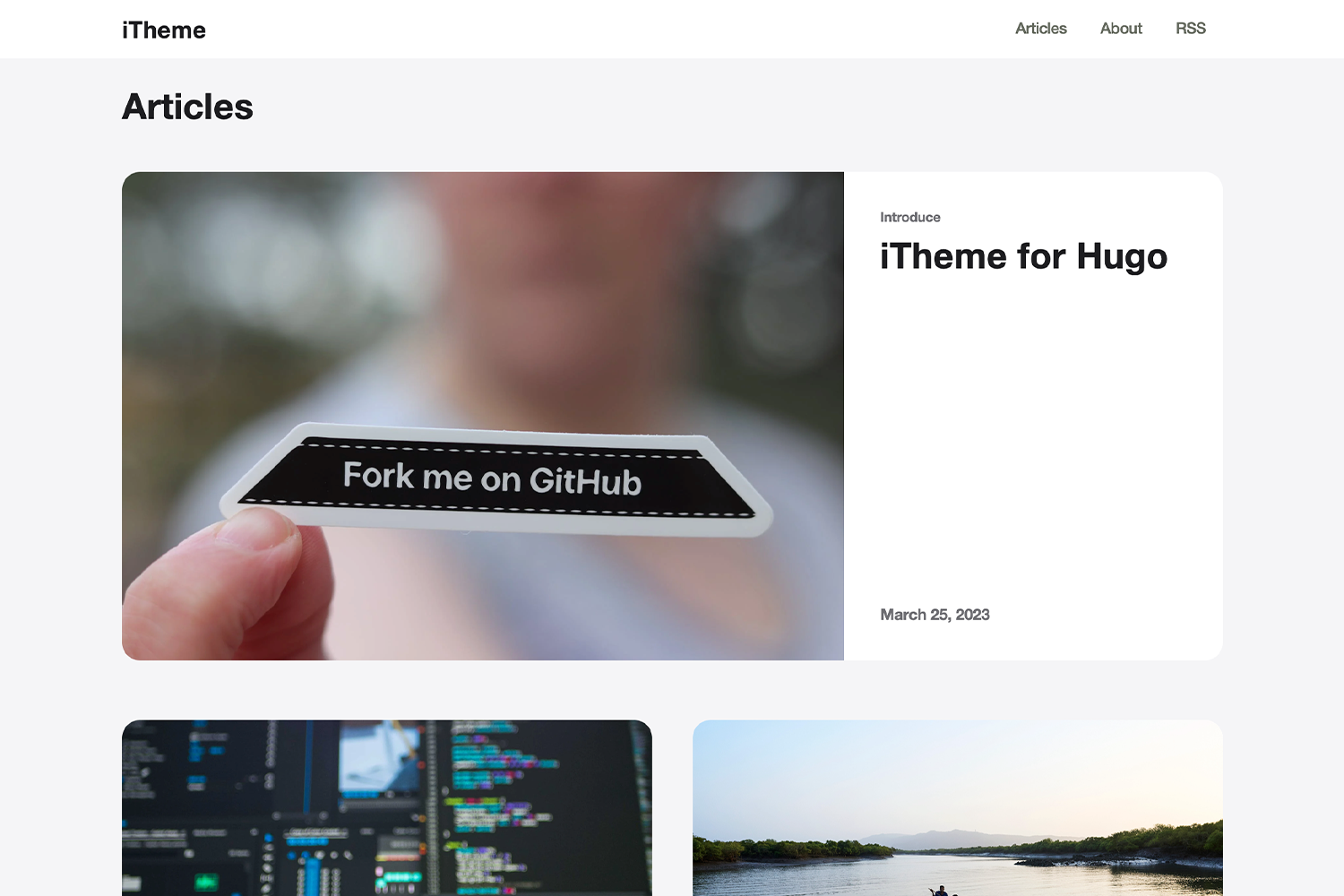
## 截屏
## 特性
- 支持文章`明``暗`两种风格
- 文中配置支持三种不同的大小
- 多语言支持(当前仅支持了中文和英文,欢迎提交其他语言的翻译)
- 支持[Algolia](https://www.algolia.com/)搜索
- 支持自定义JavaScript/CSS文件(文件需置于`static/`目录中)
## 配置
### 站点配置
```toml
defaultContentLanguage = "en" # 默认语言,当前仅支持英文(en)和简体中文(zh-hans),可以查看'i18n'文件夹
[params]
defaultCover = 'https://example.com/cover.jpg' # 文章未设置封面时的默认封面图
email = 'floyd.li@outlook.com' # 页脚显示的邮件地址the email address display in the footer
[params.algolia] # Algolia搜索功能配置
enabled = true # 是否启用Algolia搜索功能
appId = 'YOUR_KEY' # Algolia appid
appKey = 'YOUR_APP_KEY' # Algolia appkey
searchIndex = 'YOUR_INDEX' # Algolia index
[[params.css]] # 自定义CSS样式文件,可添加多个,文件位于'static'目录下,相对路径
url = 'css1.css'
[[params.css]]
url = 'css2.css'
[[params.js]] # 自定义JavaScript文件,可添加多个,文件位于'static'目录下,相对路径
url = 'js1.js'
[[params.js]]
url = 'js2.js'
[[params.socialMedia]] # 页脚显示的自定义的媒体链接,可添加多个
name = 'Github'
url = 'https://github.com/floyd-li'
[[params.socialMedia]]
name = 'Twitter'
url = 'https://twitter.com/some-one'
[[params.blogroll]] # 页脚显示的自定义的友情链接,可添加多个
name = 'Apple'
url = 'https://Apple.com/'
[[params.blogroll]]
name = 'Google'
url = 'https://Google.com/'
```
### 文章设置
```markdown
---
title: 'Some Article'
date: '2022-10-27T13:06:38+08:00'
draft: true
description: 'some description of the article'
author: 'author of this article'
cover: 'https://example.com/cover.jpg' // 封面图,如果这里没有配置,将会使用站点配置中的defaultCover
tags: ["tag1", "tag2", "tag3"]
theme: "dark" // 设置文章的明暗主题(light/dark)
---
```
### 三种图片显示模式
三种图片显示模式分别为`inline(中杯)`,`big(大杯)`,`wide(特大杯)`,具体效果可参见[演示站点页面](https://hugo-theme-itheme.netlify.app/posts/mark-down-syntax/#Image)
在编辑`Markdown`文件时,可以在插入配图的alt属性上加上`inline`, `big`或`wide`即可。
```markdown

```
分隔符是英文字符`|`,如果未设置则默认显示大杯`big`。
|
