1
2
3
4
5
6
7
8
9
10
11
12
13
14
15
16
17
18
19
20
21
22
23
24
25
26
27
28
29
30
31
32
33
34
35
36
37
38
39
40
41
42
43
44
45
46
47
48
49
50
51
52
53
54
55
56
57
58
59
60
61
62
63
64
65
66
67
68
69
70
71
72
73
74
75
76
77
78
79
80
81
82
83
84
85
86
87
88
89
90
91
92
93
94
95
96
97
98
99
100
101
102
103
104
105
106
107
108
109
110
111
112
113
114
|
# iTheme theme for Hugo
**If you like this theme, [please give me a star!](https://github.com/floyd-li/hugo-theme-itheme)**


## Introduction
[中文说明](https://github.com/floyd-li/hugo-theme-itheme/blob/master/README_CN.md)
An Apple style theme for [Hugo](https://gohugo.io/), inspired by [astro-air-blog](https://github.com/austin2035/astro-air-blog)
## Preview
[Demo Site](https://hugo-theme-itheme.netlify.app)
## Quick Start
Before you start, make sure you have installed [Hugo](https://gohugo.io/).
### Quick start with the demo site
Here's the [demo site repo](https://github.com/floyd-li/itheme-demo-site)
```bash
git clone --recurse-submodules https://github.com/floyd-li/itheme-demo-site.git my-site
cd ./my-site && hugo server -D
```
Then you can visit `http://localhost:1313` to see the demo site!
### Use the theme for existed site
```bash
git submodule add https://github.com/floyd-li/hugo-theme-itheme.git themes/hugo-theme-itheme
echo "theme = 'hugo-theme-itheme'" >> config.toml
```
Then you need to add some configuration to `config.toml`, please flow the [Site Configuration](#site-configuration).
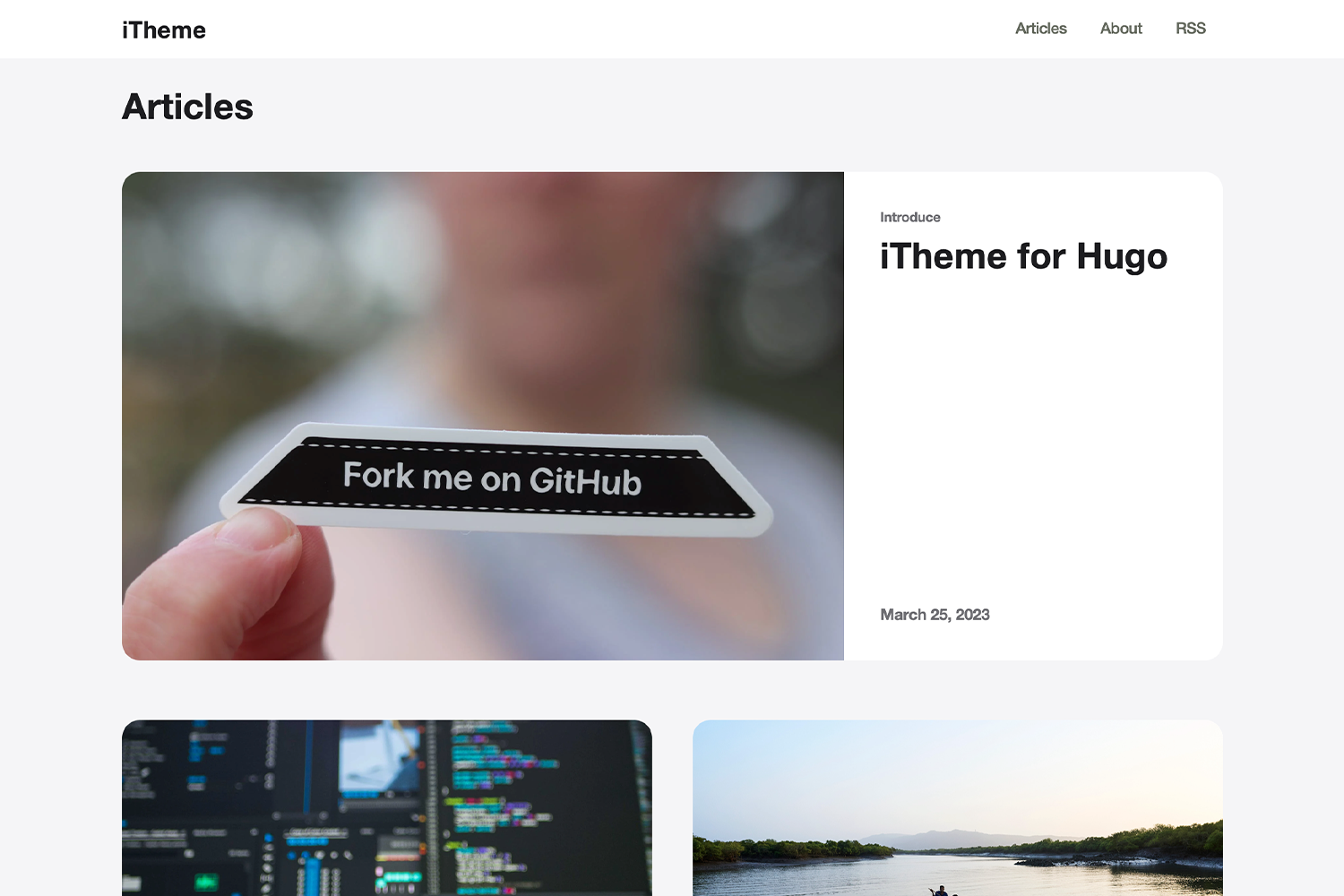
## Screenshot
## Features
- `Light` and `Dark` mode for post
- Three different sizes for images in the post
- `i18n` support (currently only support `en` and `zh-hans`, there is a great need for contributing translation)
- [Algolia](https://www.algolia.com/) search integration
- Custom JavaScript/CSS support (You may put these files in `static/` directory)
## Configuration
### Site Configuration
```toml
defaultContentLanguage = "en" # current only supported 'en' and 'zh-hans', see the 'i18n' folder
[params]
defaultCover = 'https://example.com/cover.jpg' # default cover image for post not setting cover
email = 'floyd.li@outlook.com' # the email address display in the footer
[params.algolia] # Algolia search configuration
enabled = true # enable Algolia search
appId = 'YOUR_KEY' # appid for Algolia search
appKey = 'YOUR_APP_KEY' # appkey for Algolia search
searchIndex = 'YOUR_INDEX' # index for Algolia search
[[params.css]] # custom css stylesheet, you can add one or more, url is relative in 'static' folder
url = 'css1.css'
[[params.css]]
url = 'css2.css'
[[params.js]] # custom javascript, you can add one or more, url is relative in 'static' folder
url = 'js1.js'
[[params.js]]
url = 'js2.js'
[[params.socialMedia]] # custom social links display in the footer, you can add one or more
name = 'Github'
url = 'https://github.com/floyd-li'
[[params.socialMedia]]
name = 'Twitter'
url = 'https://twitter.com/some-one'
[[params.blogroll]] # blogroll links display in the footer, you can add one or more
name = 'Apple'
url = 'https://Apple.com/'
[[params.blogroll]]
name = 'Google'
url = 'https://Google.com/'
```
### Post Configuration
```markdown
---
title: 'Some Article'
date: '2022-10-27T13:06:38+08:00'
draft: true
description: 'some description of the article'
author: 'author of this article'
cover: 'https://example.com/cover.jpg' // if not set cover, it will use the 'defaultCover' in site configuration
tags: ["tag1", "tag2", "tag3"]
theme: "dark" // you can set 'light' or 'dark' here
---
```
### Three display modes of images
The three display modes of images are: `inline`, `big`, `wide`, you can visit the [demo site](https://hugo-theme-itheme.netlify.app/posts/mark-down-syntax/#Image) for preview
When you edit your markdown file, you can add `inline`, `big` or `wide` to the image alt, like this:
```markdown

```
The Separator is `|`, and the default mode is `big`.
|
